01 / BOTH PHONES
Install or update MyFamily+.
Use only the installation file supplied by ColderWeatherDevelopments. The download section will show when a public download is ready.
- Open the download link on the Android phone and save the installation file.
- Open the completed download. If Android asks, allow this browser or file app to install this app, then return to the installer.
- Tap Install or Update, then Open. You can turn off the browser’s installation permission afterward.
Updating an existing phone? Keep the current app installed. A compatible update preserves its sign-in and family link. If Android says the update conflicts with an existing app, stop and contact support—do not uninstall to work around it.
02 / PARENT’S PHONE
Create your family.
- Open MyFamily+ and choose the parent account setup. Create an account using an email address you can access, or sign in if you already have one.
- Add each child using their name. Each child gets their own entry.
- To add another parent to the same family, use the family’s parent invitation flow rather than creating a separate family.
- If you want your family to see your location, open your profile and choose My location sharing. Adult location sharing starts off.
Keep account passwords private. A child’s phone links through its pairing QR code; it does not need the parent’s password.
03 / PARENT + CHILD PHONES
Scan the child’s pairing QR code.
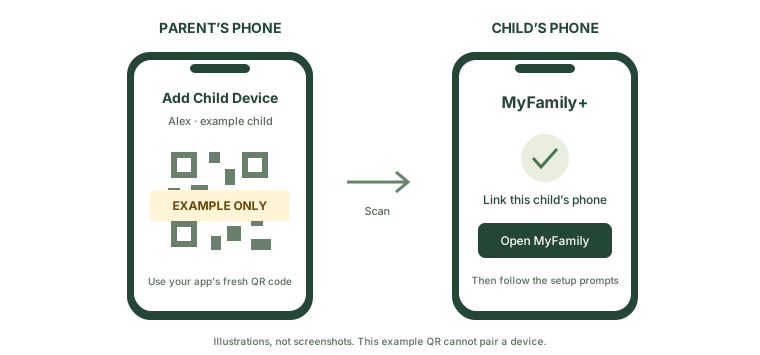
Illustration only. Use the fresh QR code displayed inside your parent app.
- On the parent’s phone, select the child’s name, open the child menu, and choose Add Child Device. Leave the pairing QR code visible.
- On the child’s phone, open the camera and scan that QR code. Tap the link that appears.
- On the pairing page, choose Open MyFamily and follow the pairing prompt.
- Confirm the correct child and family, then continue to setup.
Went straight to setup? That can mean the QR link has already completed pairing. You do not need a separate number code when the QR flow succeeds. If a link has expired or was already used, generate a fresh pairing QR code from the parent app.
A pairing QR code links a device to your family. Do not post it publicly or send screenshots to other people.
04 / CHILD’S PHONE
Finish setup together.
Read the on-screen explanations with your child. Android’s wording varies by phone. Enable permissions only for the features you choose.
Location
Allow precise location and background access when prompted, so sharing can continue while the screen is off.
Notifications
Allow MyFamily notifications. A visible notice shows when monitoring is active.
Usage access
Follow the child setup prompt for app-usage reporting and supervision features.
Battery settings
Follow the app’s battery setup instructions so Android does not unnecessarily stop background activity.
Return to MyFamily+ and finish setup. Check that the correct child is linked and location sharing shows as active.
05 / OPTIONAL, CHILD’S PHONE
Choose automatic keyword alerts.
- Open Automatic keyword alerts and read the explanation of how preview checks work.
- Choose Choose apps and enable. Select only the messaging apps the child uses. MyFamily+ includes Google Messages and Samsung Messages, plus supported chat apps.
- Read the confirmation and choose Agree and enable if you want this monitoring.
- Open Android notification access and enable access for the current MyFamily+ app. Return to MyFamily+ and check that monitoring is enabled.
Amber alert
A notification preview matched the amber keyword category. The parent sees the alert and time.
Red alert
A notification preview matched the red category or prescription-name library. Check in with the child for context.
Setup is one-time. You do not need to share every message manually. Checks continue for new supported notification previews while enabled. Turn them off using Turn off keyword monitoring or revoke notification access in Android Settings.
Only the alert identifier, color and time are uploaded with the linked child device. Text, sender names and matched words are not uploaded. Hidden previews, message history and outgoing messages are not read. Android may suppress previews, and delivery may be delayed or missed. A match is not proof of danger. This is not an emergency service.
06 / CHECK TOGETHER
Make sure your family is connected.
- On the parent phone, check the child’s name and recent location. Make sure both phones have internet access.
- If keyword alerts are enabled, agree on a clearly labeled test message with your child. Send it through one of the selected apps and check the parent’s alert.
- Repeat with the child’s screen off. After restarting the child’s phone, unlock it normally once, then check again.
- If an alert is missing, check that the message app produces a visible notification preview, MyFamily notification access is on, and monitoring still says enabled.
No VPN is needed. The phones can use different Wi-Fi or mobile networks.
 MyFamily+